Practical image workflow
Reframe a Landscape Image for Portrait
A wide photograph of a ceramic vase may work on a website but leave too little room for a vertical social announcement. First decide whether a simple crop would keep the subject intact. If the scene needs extra space above or below, Expand Image can attempt a prompt-led background continuation. The illustration explains a reframing idea, not a guaranteed canvas operation. This guide helps you choose what to keep, describe the missing surroundings, and inspect the generated portrait composition before adding text or applying exact destination sizing.
Try this workflowA prompt is prefilled; generation requires sign-in and available credits. Review model cost before submitting.
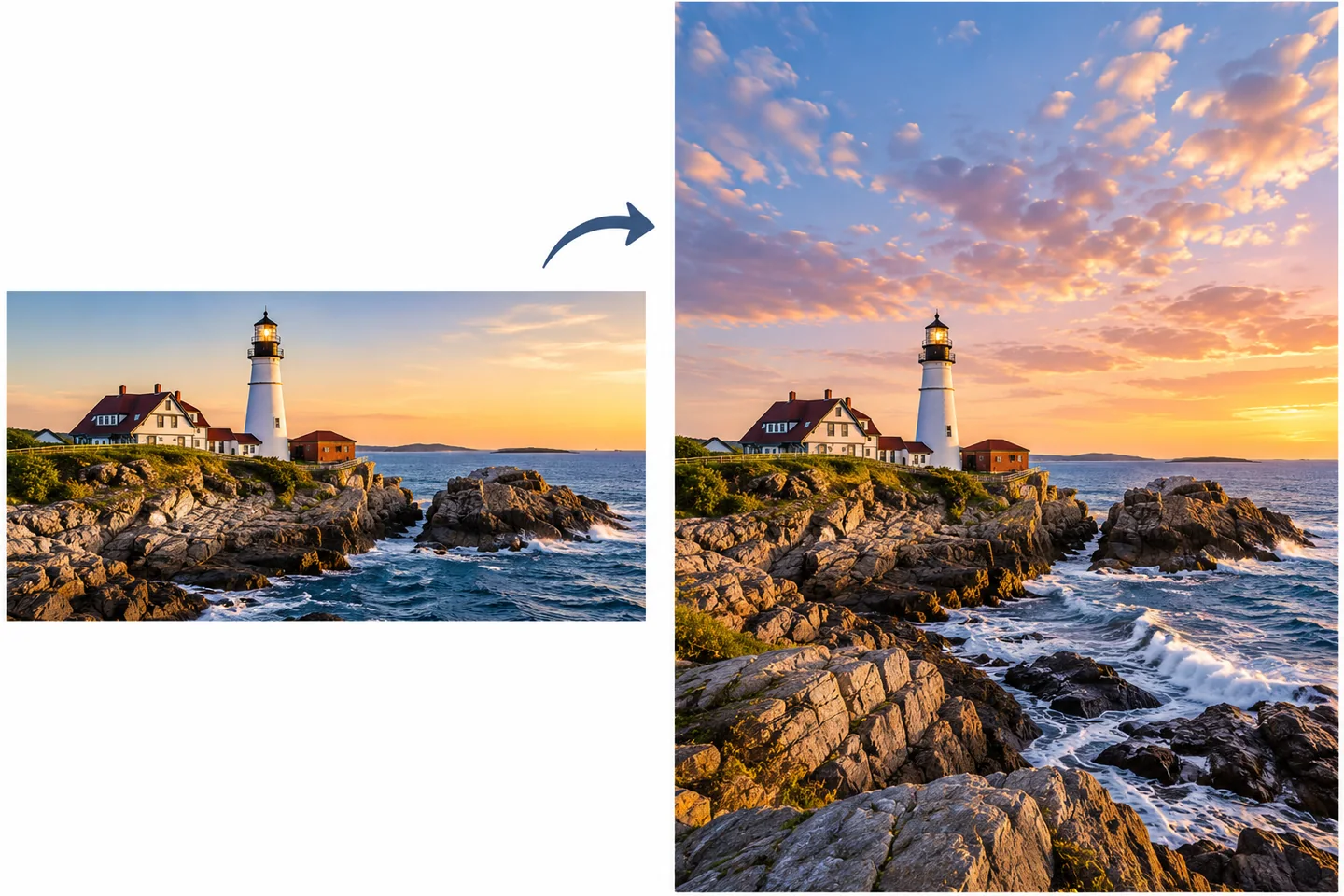
Prepare your input
- Use one reference JPEG, PNG, or WebP up to 15 MiB, with permission to edit it. Start from the widest useful original rather than a previously cropped social screenshot.
- Identify the destination's shape and safe content area. Check whether your selected model offers a suitable portrait ratio; exact pixel dimensions and platform overlays need separate verification.
- Mark your priorities in words: subject scale, headroom or object clearance, caption area, and background continuity. Decide whether factual edges or product features rule out generative extension.
Example prompt
Reframe this authorized wide photograph of a ceramic vase as a portrait composition for a social announcement. Keep the vase as the main subject at a believable scale, with the table surface beneath it. Add a quiet continuation of the plain wall above and the tabletop below, consistent with the existing window light and perspective. Leave uncluttered space above the vase for text I will add later. Avoid new flowers, duplicated objects, changed vase decoration, or invented lettering.
Step-by-step workflow
- 1
Compare cropping with extension
Imagine a portrait crop over the source before choosing AI. If the full subject and enough context fit, a conventional crop may be the most accurate solution. If cropping would cut the vase or leave no caption space, describe which surroundings should continue. Avoid inventing missing parts of a person or product when those parts must match reality; choose a different source instead.
- 2
Describe the vertical composition
Open Expand Image, sign in, and upload the single reference. Select a portrait ratio only if the chosen model supports it, and describe subject placement and the expected background above or below. Review quality, output format, and credits before starting generation yourself. Do not assume you can drag a canvas boundary or lock the original rectangle; this handoff uses a prompt to express the framing.
- 3
Check geometry and destination fit
Inspect the vase shape, table edge, wall texture, and light direction in the generated image. Look for doubled objects, curved straight lines, inconsistent shadows, and changes within the original scene. Then preview the composition at the destination size with its interface overlays in mind. Add exact captions and finish the required dimensions in a layout editor, keeping essential content away from edges that may be cropped.
Choose what the portrait version needs
A vertical image is a composition decision before it is a generation task. Use the source's geometry and the destination to decide whether to crop, extend, or choose another photograph. The examples below describe visual planning, not certified ratios or platform-safe margins supplied by the app.
| Source situation | Framing decision | What to inspect |
|---|---|---|
| A central object with plenty of empty space on both sides | Try a conventional portrait crop first; extra generated content may be unnecessary. | Confirm the subject remains large enough and its full silhouette survives the destination's crop. |
| An object close to the top with no title space | Ask for a quiet wall continuation above it while retaining the tabletop relationship. | Check wall texture, lighting falloff, and the object's scale; new space should not introduce distracting props. |
| A wide horizon or architectural scene | Describe sky or ground continuation, but consider whether generated geometry is acceptable for the use. | Inspect rooflines, horizon level, vanishing directions, and any repeated windows; plausible extensions are not location evidence. |
| A person or product already cut off at the edge | Prefer another original if the missing body part or product boundary must be accurate. | Do not accept invented anatomy, seams, or dimensions simply because the portrait framing appears balanced. |
Limitations and responsible use
- Generated surroundings are illustrative and may change the source subject too. This is not a deterministic crop-and-fill operation, and it cannot guarantee preservation of the original image region or true reconstruction beyond the frame.
- Model-specific ratios, quality options, and output formats vary. The guide does not certify social-platform dimensions, safe zones, print sizes, or resolution; inspect and size the actual downloaded output for its destination.
- Generation requires a signed-in account and credits. Safety filters may reject requests. The editor uses one reference; a prompt is not a canvas handle, a precision mask, or a promise that expansion will keep every detail.
Common questions
When should I crop instead of generate new background?
Crop when the subject and required context already fit inside a portrait frame. It retains real source pixels and avoids invented surroundings. Expansion is worth considering when additional visual space is useful and an illustrative continuation is acceptable.
Can I request a specific vertical social ratio?
Check the ratios offered by the selected model and choose one that fits your plan. A ratio request in text alone does not guarantee exact dimensions. Finish the export in a layout editor and verify the destination's current requirements yourself.
Why did the vase change when I only wanted more wall?
The prompt-led editor can reinterpret the whole scene rather than freeze the original rectangle. Name the vase features you want retained and inspect them closely. If exact product appearance is essential, use a conventional canvas-extension workflow with controlled manual editing.