Practical image workflow
Modify an Image with a Clear Revision Brief
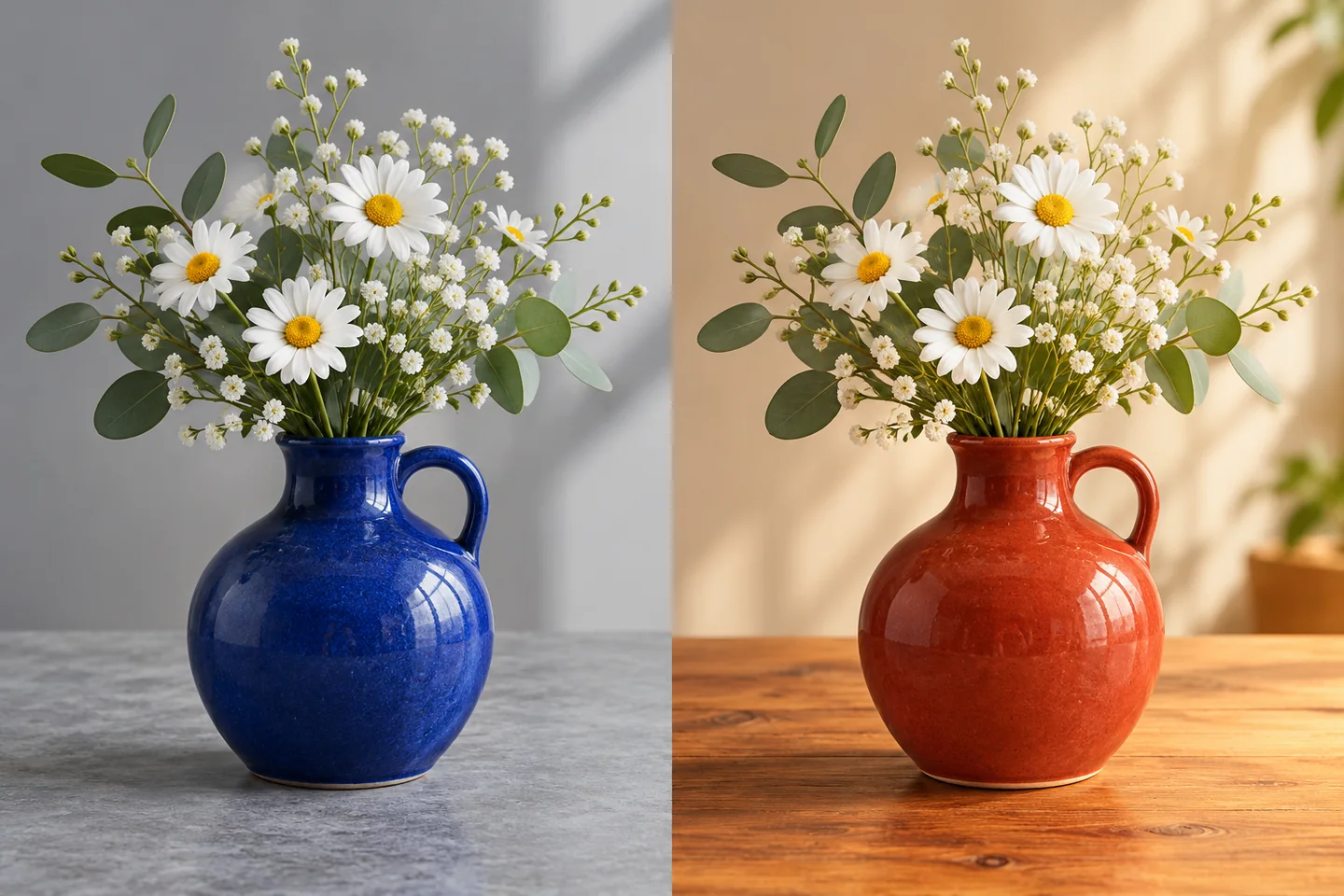
Suppose you have a café announcement image and need to replace a distracting vase with a small unbranded plant before adding event text. A clear revision brief is more useful than asking AI to improve everything. This guide treats Image Modifier as the existing prompt-led Edit workflow, not a separate precision editor. The illustration shows a possible revision concept rather than a verified before-and-after. Prepare one source image, choose one primary change, and compare the result against a short acceptance list before making another request.
Try this workflowA prompt is prefilled; generation requires sign-in and available credits. Review model cost before submitting.
Prepare your input
- Prepare one reference JPEG, PNG, or WebP up to 15 MiB, with permission to edit all relevant content. Use a source without important text baked into the area you want changed.
- Write one primary change, three things that should remain, and one practical purpose. For example: replace the vase, retain the cup, window light, and empty caption space, and prepare an event graphic.
- Identify whether you actually need replacement, color adjustment, expansion, enhancement, object removal, or background removal. The available shortcuts express different prompt intents; they do not provide deterministic local controls.
Example prompt
Modify this café tabletop image that I am authorized to edit. Replace the tall decorative vase on the right with a small unbranded green plant in a plain terracotta pot. Keep the coffee cup as the focal point, retain the warm window light and wood surface, and leave the empty upper-left area clear for event text I will add later. Match the plant's scale and contact shadow to the table. Do not change the cup design, invent text, or add other props.
Step-by-step workflow
- 1
Turn the request into an acceptance list
Write down the visible change in a sentence that names both the object and its location. List the elements that make the source useful, such as a product shape or a quiet text area. Separate factual requirements from optional mood. If a logo, label, or exact geometry must remain untouched, plan manual finishing rather than assuming a preservation instruction can lock those pixels.
- 2
Use the closest editing intent
Open Edit for an object replacement, sign in, and upload the single reference. Describe the new object's scale, material, light, and position relative to what is already visible. Check model-supported settings and credits, then begin generation yourself. For a different task, use the matching shortcut instead of stacking several unrelated changes into one prompt; a narrower brief makes the outcome easier to assess.
- 3
Review the change and the collateral effects
Compare the output with your acceptance list rather than asking whether it simply looks nicer. Check the new object's contact shadow, perspective, and size, then inspect supposedly retained details. Reject versions that introduce fake text or alter an important product. If the main request worked but a small finish remains, decide whether a dedicated editor can resolve it more accurately than another generative pass.
Route the revision by the change you need
The names below refer to existing prompt shortcuts. They help frame a request, but none guarantees an isolated edit or unchanged surrounding pixels. Pick the row that describes the main task, and retain the original for comparison rather than making every revision on a newly generated version.
| Revision brief | Closest shortcut | Acceptance check |
|---|---|---|
| Replace the vase with a small plant of similar visual weight | Edit: describe the replacement, location, material, and scale. | The plant sits on the surface with plausible perspective and does not displace the focal coffee cup. |
| Reduce the warm cast without changing the arrangement | Adjust: name the illumination or color relationship to change. | The tabletop and cup stay believable; the correction does not introduce unrelated objects or a new scene. |
| Create room above the table for a vertical announcement | Expand Image: explain the needed framing and background continuation. | The extended wall and window light align, and enough quiet space remains for lettering added afterward. |
| Remove an unwanted prop without replacing it | Erase Objects: identify the prop and the surface expected behind it. | The reconstructed tabletop has no doubled grain, floating shadows, or invented marks that misrepresent the source. |
Limitations and responsible use
- This workflow interprets a prompt over the full image. It does not expose a deterministic brush, mask, edit-strength slider, or seed, and cannot guarantee that product details or surrounding pixels stay identical.
- A polished mockup is illustrative. Do not present a generated product variation, room layout, or packaging label as a verified real specification; preserve factual assets and add exact text with appropriate editing tools.
- Generation requires a signed-in account and credits; safety filters may reject requests. The editor accepts one reference, so do not assume a second image can be supplied as an exact replacement object here.
Common questions
Should I ask for several revisions at once?
Start with the change that determines whether the image is useful. A vase replacement, warmer light, and a new composition can compete with each other. Once you evaluate the primary revision, decide whether remaining work needs another focused prompt or manual finishing.
Can a prompt keep my logo exactly unchanged?
You can name the logo as something to retain, but that is an instruction rather than a pixel lock. Compare its shape and lettering against the source. For brand-critical work, restore the approved logo as an original asset in a dedicated editor.
What if I need an object from another photograph?
This editor takes one reference. A descriptive replacement will be interpreted rather than copied exactly. For multi-reference composition, check whether a homepage model supports the required reference count; even then, verify the result rather than assuming exact object transfer.