Photo effects prompt guide: direct one intentional transformation
Choose age, curls, PS2, cartoon-to-real, or chibi effects, then use scene-specific prompts and a practical review checklist for a considered result.
 Img2Img AI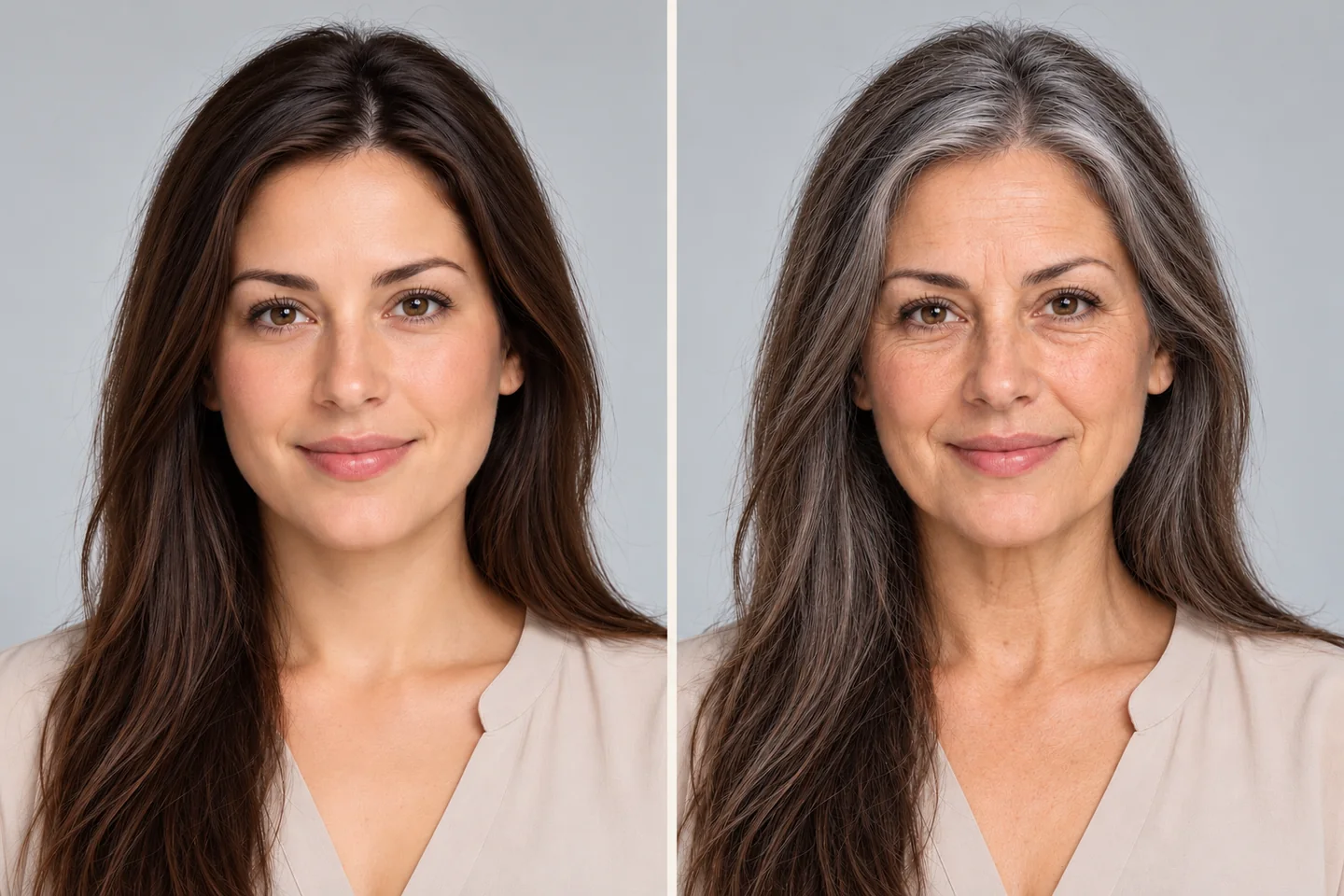
Choose one transformation for one image, then judge whether the result communicates that choice. This guide covers the five Photo Effects starting points: age, curly hair, PS2, cartoon-to-real, and chibi. Pick the section that fits your task rather than combining all five looks. Each example names a scene, the intended change, and details worth retaining.
Contents:
- Prepare the image and choose a workspace
- Age: a fictional older-adult portrait
- Curls: explore a hairstyle in context
- PS2: define the game scene
- Cartoon-to-real: translate a design
- Chibi: simplify a recognizable character
- Review and troubleshoot the transformation
Prepare the image and choose a workspace
Use your own image or one you have permission to transform. For a recognizable person, get consent for the specific identity-related edit and its intended sharing context. The portrait examples below concern adults; they are creative directions, not assessments of someone's actual age, attractiveness, or future appearance.
Prepare a JPEG, PNG, or WebP within the general 15 MiB upload limit; provider or storage limits can be lower. Use a clear face for portrait effects and a readable silhouette for character effects. Avoid starting with a tightly cropped hairstyle if the task needs room for curls. Keep an untouched copy for comparison.
Open Photo Effects to choose a preset, upload the reference, select a model, and generate. Sign in and check the displayed credit cost; generation requires credits. Controls and reference-image counts vary by model. The current effects workspace sends a fixed prompt for each preset and does not provide a custom prompt field.
To use the tailored examples below, open AI Edit in the image editor, upload your source, and enter the prompt there. These examples are writing templates, not extra controls hidden in Photo Effects. The homepage generator also supports image-to-image and text-to-image, depending on whether you want a reference-led transformation or a new scene.
Age: a fictional older-adult portrait
For an adult seated in a reading room, ask for an imagined older portrayal with the scene intact. Name the visual treatment rather than asking the system to determine the person's age. A request to retain recognizable features is a goal, not an identity guarantee.
Create an illustrative older-adult version of the consenting adult in this reading-room portrait. Add subtle smile lines and some gray strands while trying to retain the face shape, relaxed expression, navy cardigan, seated pose, and bookshelves. Keep the warm lamp lighting. Do not add medical implications, an age label, or text.
Check facial structure, skin texture, and hairline. If wrinkles look etched or expression changes, request a subtler treatment while keeping the other wording stable. The same-adult before-and-after artwork on the site is illustrative, not proof of an actual test or a prediction of how someone will age. Do not use a generated portrait to infer a real person's age.
Curls: explore a hairstyle in context
For a café portrait, define curl size, length, and where the hair sits relative to clothing. “Curly hair” alone leaves volume and silhouette open. Choose a requested style without framing it as objectively better or more beautiful than the person's existing appearance.
Give the consenting adult in this café portrait shoulder-length loose curls with a side part and moderate volume. Try to retain the face, expression, dark hair color, green sweater, and window-side seating. Keep curls separate from the sweater collar and leave the eyes visible. Preserve the soft daylight mood; avoid makeup changes or beauty retouching.
Inspect ears, glasses, neckline, and individual curl clusters for merged shapes. If hair covers the eyes, specify that the front curls rest beside the cheeks. If volume fills the frame, use a wider supported composition or a less tightly cropped source. This is a hairstyle visualization, not a reliable forecast of how a cut or treatment will look in practice.
PS2: define the game scene
PS2-style art benefits from a particular setting and camera viewpoint. An adult cyclist at dusk can become a game character in a low-poly street scene. Specify geometry, texture, and lighting instead of relying only on the console name.
Reimagine this adult cyclist at a quiet street corner as PS2-era 3D game art. Use angular low-poly clothing, simple painted textures, restrained dusk lighting, and a third-person game-camera composition. Try to retain the red jacket, bicycle silhouette, and corner shop placement. Keep faces stylized; do not add a HUD, readable signs, or a game logo.
Review the bicycle wheels, handlebar connections, and subject proportions. Simplification should communicate the chosen style rather than produce accidental broken geometry. If the result remains photographic, prioritize low-poly shapes in the next prompt. The grain filter case page offers another texture-oriented direction, but grain alone does not describe a PS2 scene.
Cartoon-to-real: translate a design
Use a character you created or have permission to adapt. Identify its recognizable design cues before translating them into photographic materials. A cartoon contains no hidden photograph to recover; the model invents a plausible interpretation.
Translate my original cartoon adult explorer into a photographic character portrait at a forest trailhead. Keep the round glasses, mustard raincoat, short dark hair, and friendly expression as design cues. Use plausible fabric folds, diffuse overcast light, and natural skin texture. Interpret the proportions for a fictional adult; do not imitate a real public figure or add text.
Compare the silhouette, outfit, and expression with the drawing before assessing surface realism. If the design disappears, reduce scene changes and foreground the three most distinctive cues. If the proportions look unsettling, ask for plausible anatomy rather than more detail. See the AI-to-real case page for this conversion direction. A convincing image still represents an invented person.
Chibi: simplify a recognizable character
Chibi works through deliberate proportion changes and selective detail. For an adult gardener, use clothing and a prop as recognition cues instead of expecting exact facial correspondence. Keep the design readable when displayed small.
Turn this consenting adult gardener into a cheerful chibi illustration with an oversized head, compact body, and simple rounded hands. Try to retain the straw hat, blue overalls, and small watering can. Place the character beside two potted plants on a plain cream background. Use clean outlines and soft flat colors; avoid tiny lettering and extra fingers.
Inspect the hands, hat brim, and watering-can handle. If details become cluttered, remove background objects before asking for finer rendering. The photo-to-cartoon case page provides a related starting point when you want illustrated styling without specifying chibi proportions. A chibi character is a stylized depiction, not evidence that the source person is a child.
Review and troubleshoot the transformation
Keep the original visible while reviewing the output. First ask whether the selected effect is clear, then inspect retained features, body connections, clothing, and background continuity. For people, reconsider whether the portrayal matches their consent and the context in which it will appear. Avoid presenting an illustrative transformation as an unedited photograph.
Change one thing per attempt: reduce aging intensity, specify curl placement, strengthen low-poly geometry, restore a character cue, or simplify a chibi prop. Return to the original when identity drifts; repeatedly transforming generated faces can compound changes. Save versions with their prompts and model settings in your own notes.
If uploading fails, check format and size. If generation cannot start, check login, credits, and the service message. Another model may interpret the same brief differently, and neither presets nor custom prompts guarantee exact identity or identical repeat results. Choose the version that serves your single intended transformation, or stop when the mismatch requires direct editing.